Introduction
This book is for people who have used a microcomputer and would like to know more about what happens inside the machine when they use it. As you will see there are things you can try all the way through the book, so if you have access to a microcomputer, try to have it nearby as you read.
Try all the examples as you go through and you will find it easier to understand the books. The examples have been written for a ZX Spectrum machine.
First of all we'll see how a computer counts and uses different codes as it works. Then we will take a look at the different kinds of memory the computer has.
How are letters and shapes made to appear on the screen? In the third part we will try and show you one way to do this so that you can develop your own designs.
Important
When typing in a program listing only press the ENTER key before entering the next line number.
All program listings are for Sinclair ZX Spectrum machines.
The illustrations in this book are shown as would be seen on a green monochrome screen. If you are using a black and white or colour television set or monitor, instead of light green and dark green, you will see black on white.
ZX Spectrum edition
© LADYBIRD BOOKS LTD MCMLXXXIV. This edition MMXXVI.
All rights reserved. No part of this publication may be reproduced, stored in a retrieval system, or transmitted in any form or by any means, electronic, mechanical, photo-copying, recording or otherwise, without the prior consent of the copyright owner.
Micro Knowledge
written by JOHN SMITH B Sc(ENG), M Ed Department of Creative Design, Loughborough University of Technology revised by JASON JACQUES B Sc(Hons), PhD ilustrations by KEN McKIE
Ladybird Books Loughborough
Counting in Binary
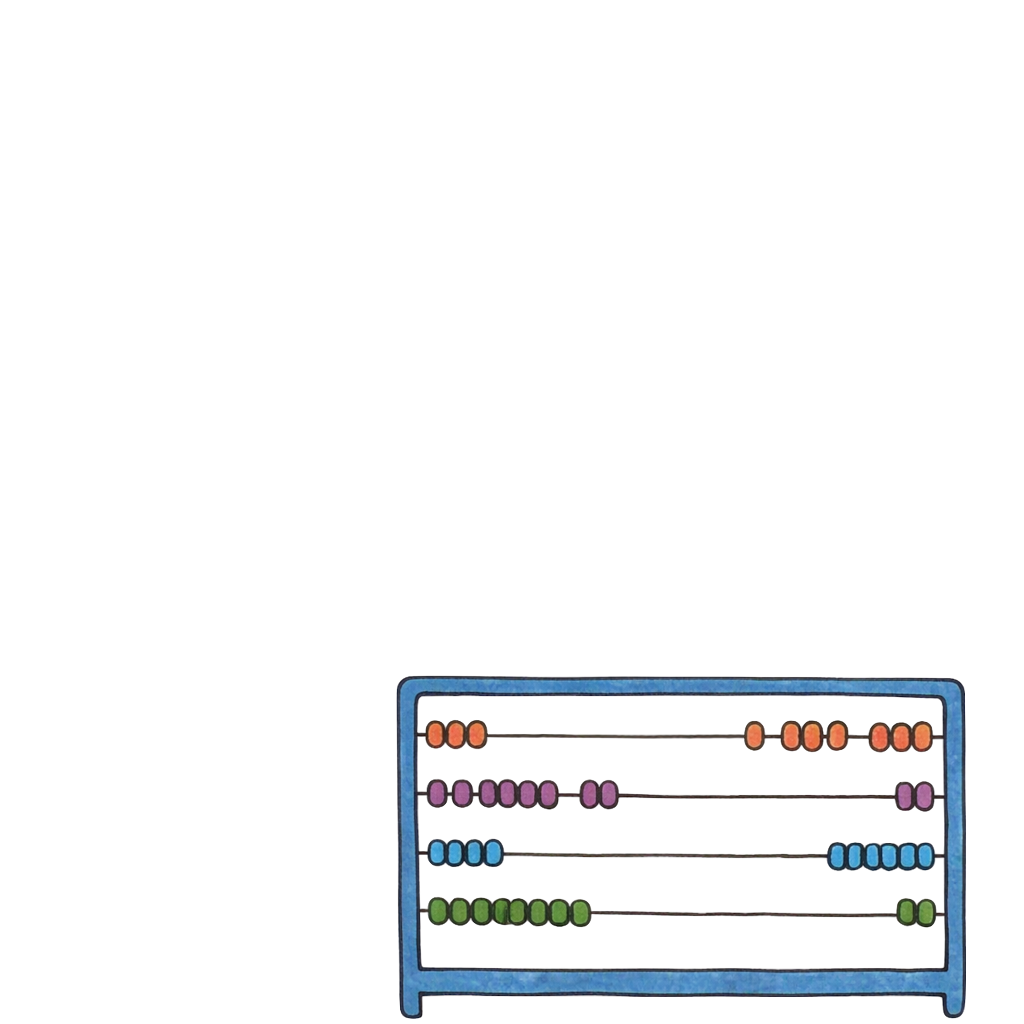
A good starting point is to see how your micro counts. A computer can only tell if something inside it is on or off. Think of it like a light bulb. If it's ON we can call that ONE. If it's OFF we can call that ZERO.
Suppose we have two light bulbs. How many different patterns of ON and OFF can we have?
 |
|
both OFF |
|
 |
right ON |
|
|
left ON |
|
|
both ON |
Making number 1 stand for ON and number 0 stand for OFF we can turn this into a system for counting.
So we can only count up to three with two bulbs. With three light bulbs we can count to seven. We call this BINARY counting. Just like a bicycle has TWO wheels and binoculars have TWO lenses, binary counting uses only TWO numbers. So you can only count with 0 and 1.
People are used to counting using TEN numbers: 0,1,2,3,4,5,6,7,8,9. The word for counting with TEN numbers is DECimal from the Latin decem meaning ten.
In binary counting, each digit is known as a BIT (short for BINARY DIGIT). The binary number 101 is a three BIT number.
Let's try converting some binary numbers to decimal numbers.
Suppose we have a binary number with four bits, say 1010.
We can set it out like this:
| eights | fours | twos | units |
|---|---|---|---|
| 1 | 0 | 1 | 0 |

Notice that each column heading is two times more than the one to its right. To convert 1010 to decimal we just read off the columns where there's a 1 and add the decimal values together. Like this:
| eights | fours | twos | units | |
|---|---|---|---|---|
| 1 | 0 | 1 | 0 | |
| 8 | 0 | 2 | 0 | = 10 (ten) |
Using these columns, what's the largest four bit number we can make?
Yes, it's 1111:
| eights | fours | twos | units | |
|---|---|---|---|---|
| 1 | 1 | 1 | 1 | |
| = ? |
What is this in decimal? Add up the columns and see!

The table below shows all the possible binary numbers using four bits, ie the equivalent of 0 to 15.
| Binary | Decimal |
|---|---|
| 0000 | 0 |
| 0001 | 1 |
| 0010 | 2 |
| 0011 | 3 |
| 0100 | 4 |
| 0101 | 5 |
| 0110 | 6 |
| 0111 | 7 |
| 1000 | 8 |
| 1001 | 9 |
| 1010 | 10 |
| 1011 | 11 |
| 1100 | 12 |
| 1101 | 13 |
| 1110 | 14 |
| 1111 | 15 |
We can of course start with a decimal number and convert it to binary.
Here's a program to help you. This program will change decimal numbers (up to 15) to the equivalent four bit binary numbers.
  10 CLEAR
  15  REM Print information 4 lines down.
  20 PRINT AT 4,0;"This program will change a"
  30 PRINT "decimal number between 0 and 15"
  40 PRINT "to its binary equivalent."
  45  REM Leave a line
  50 PRINT
  60 PRINT "Type in a decimal number between"
  61 PRINT "0 and 15 and press ENTER"
  65  REM Number to be decoded is input and
     stored in N.
  70 INPUT "Decimal number 0-15: ";N
  80 IF N<0 OR N>15 THEN GO TO 10
  90 LET D=0: IF N>7 THEN LET D=1
 100 LET M=N: IF D=1 THEN LET M=N-8
 110 LET C=0: IF M>3 THEN LET C=1
 120 LET P=M: IF C=1 THEN LET P=M-4
 130 LET B=0: IF P>1 THEN LET B=1
 140 LET Q=P: IF B=1 THEN LET Q=P-2
 150 LET A=0: IF Q>0 THEN LET A=1
 155  REM Print headings.
 160 PRINT AT 13,6;"DECIMAL"
 170 PRINT AT 13,17;"BINARY"
 175  REM Print decimal number.
 180 PRINT AT 15,9;N
 185  REM Print BITs of binary equivalent.
 190 PRINT AT 15,18;D;C;B;A
 200 PRINT AT 20,0;
 201 PRINT "Do you wish to check another"
 210 PRINT "number? (Y/N)"
 215  REM Next letter or number pressed is
     stored in INKEY$ if pressed within 40
     seconds.
 220 PAUSE 2000
 225  REM If you press y or Y you can try a
     new number. If not program will end
     having printed goodbye.
 230 IF INKEY$="Y" OR INKEY$="y" THEN GO TO 10
 240 CLS : PRINT AT 5,5;"GOODBYE"
 250 STOP
So you can see that by using 0 and 1 a computer can count in binary
What's the biggest number your computer can store and handle? Most home computers today are 8 bit; they count as though they have sets of eight light bulbs to turn ON and OFF inside. Using sets of eight bits, computers can handle whole numbers as large as two thousand million (2,000,000,000).
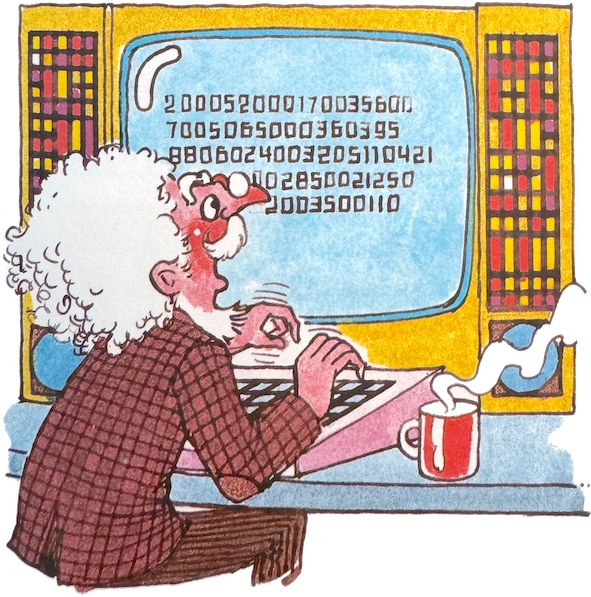
Of course, the computer doesn't use light bulbs. Remember, the parts that go on and off are called BITS. You may have heard people talk about 8 bit, 16 bit and even 32 bit micro computers. The micro computer that you use at present is probably an 8 bit machine. Eight bits are often known as a BYTE.
Later in the book we shall want to know the decimal equivalent of a BYTE so let's try a few examples here.
Consider the number 11111111.
| 128 | 64 | 32 | 16 | 8 | 4 | 2 | 1 | |
|---|---|---|---|---|---|---|---|---|
| 1 | 1 | 1 | 1 | 1 | 1 | 1 | 1 | |
| 128 | 64 | 32 | 16 | 8 | 4 | 2 | 1 | = 255 |
Now try another.
| 128 | 64 | 32 | 16 | 8 | 4 | 2 | 1 | |
|---|---|---|---|---|---|---|---|---|
| 1 | 0 | 0 | 0 | 0 | 0 | 0 | 1 | |
| 128 | 0 | 0 | 0 | 0 | 0 | 0 | 1 | = 129 |
Now you work out 10001000.
Yes! The answer is 136.
Working out 8 bit numbers is quite difficult so computer people sometimes use a special code called HEXADECIMAL.
Counting in hexadecimal
Have you noticed that some of the numbers in the ZX Spectrum BASIC programming manual are followed by the letter h?
In some books and articles, such as those about machine code for the Z80 microprocessor, this type of number might start with the symbol $ or begin with the code 0x.
These numbers are a compact form that is more compatible with the way the computer counts in binary.
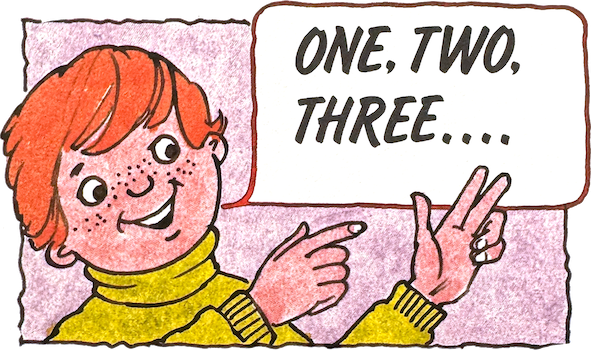
When we count we use ten single digits (decimal):—
| 0 | 1 | 2 | 3 | 4 | 5 | 6 | 7 | 8 | 9 |
Each number is one digit, six is 6 and three is 3.
What happens when we reach ten?
| 0 | 1 | 2 | 3 | 4 | 5 | 6 | 7 | 8 | 9 | 10 |
When we get to ten we haven't got any more single digits. We convert our ten units to a single TEN and no UNITS and use two digits.
We can think of the computer counting in sets of four bits. We saw that with four bits we can count from 0 to 15 (16 numbers.)
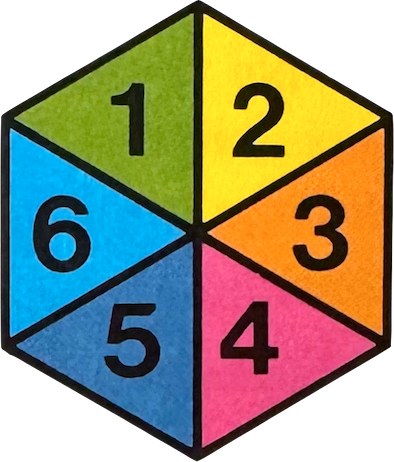 The code used to count in groups of sixteen numbers is called HEXADECIMAL. (Remember, a HEXagon has SIX sides, so hexadecimal is 6+10 or 16.)
0 1 2 3 4 5 6 7 8 9... What's next?
(No one has yet invented single digit numerals beyond 9.)
What computer people have done is to use letters to represent the rest of the counting in hexadecimal. So, counting in hex (short for hexadecimal) looks like this...
0 1 2 3 4 5 6 7 8 9 A B C D E F
In the hex code, F stands for 15 and A for 10. What does C stand for?
We can now look at three ways of counting.
| Binary | Hexadecimal | Decimal |
|---|---|---|
| 0000 | 0 | 0 |
| 0001 | 1 | 1 |
| 0010 | 2 | 2 |
| 0011 | 3 | 3 |
| 0100 | 4 | 4 |
| 0101 | 5 | 5 |
| 0110 | 6 | 6 |
| 0111 | 7 | 7 |
| 1000 | 8 | 8 |
| 1001 | 9 | 9 |
| 1010 | A | 10 |
| 1011 | B | 11 |
| 1100 | C | 12 |
| 1101 | D | 13 |
| 1110 | E | 14 |
| 1111 | F | 15 |
| 10000 | 10 | 16 |

Binary is used by the computer in all its workings.
Hexadecimal is the name of the code used for counting using sixteen digits.
Decimal is the way we are used to counting in everyday life and it uses ten single digits.
Don't forget that ZERO is a number too!
The ZX Spectrum can accurately represent whole numbers (called integers) up to 4,294,967,295. That is
11111111111111111111111111111111
in binary or FFFFFFFFh in hex.
When we see a number followed by 'h' we know it is a hexadecimal number.
This explains the mystery of the 'funny' numbers!
Most computers accept numbers in decimal or in hexadecimal and then convert them into binary. It's easier for people to work in decimal rather than hexadecimal, so let's see the computer change numbers from hex to decimal and back again.
Use the following program to convert from hex to decimal.
  10 LET D=0: INPUT "Hex (Q to Stop): ";H$
  20 LET X=LEN H$: IF X<1 THEN GO TO 10
  30 LET H=CODE H$: LET H$=H$(2 TO )
  40 IF X>0 THEN LET D=D*16
  50 IF H>96 THEN LET H=H-32
  60 IF H=81 THEN STOP
  70 IF H>64 AND H<71 THEN LET D=D+H-55
  80 IF H>47 AND H<58 THEN LET D=D+H-48
  90 IF X=1 THEN PRINT D
 100 GO TO 20
Run the program. Type in:
F and press ENTER *
You should get 15.
* After typing in any instructions the ENTER key should of course be pressed. This symbol will remind you.
ENTER
Try another one,
FF Enter
Did the number 255 appear on the screen?
So you can see it is very easy to translate from hexadecimal to decimal, using your computer.
If you want to go the other way (to find the hexadecimal equivalent of a decimal number) then you can use this program.
10 LET H$="": INPUT "Decimal (-1 to Stop): ";D
20 IF D=-1 THEN STOP
30 IF D<0 THEN GO TO 10
40 LET R=D-INT (D/16)*16: LET D=INT (D/16)
50 LET H$=CHR$ (R+48+(R>9)*7)+H$
60 IF D>0 THEN GO TO 40
70 PRINT H$: GO TO 10
Run the program.
Type in: 15 Enter
The answer should be F.
Try: 10 Enter
and: 17 Enter
This will give you the hex equivalent of decimal 10 and decimal 17.
Now we can count in binary like a computer. We are able to change a binary number into a hexadecimal number and then back again.
Here's a game you can try to test your skill with these new sorts of numbers. The computer prints out a decimal number on the screen. You have to work out what it is in binary and type in your answer.
 10 DIM X(4)
 20 RANDOMIZE
 30 LET d = INT (RND*16)
 40 CLS
 50 PRINT AT 4,2;"Type in ALL four bits of the"
 60 PRINT AT 6,2;"BINARY number equivalent to"
 70 PRINT AT 8,2;"the given DECIMAL number."
 80 PRINT AT 12,3;"DECIMAL";AT 12,22;"BINARY"
 90 PRINT AT 14,23;"****"
100 PRINT AT 14,6;d
120   FOR B=1 TO 4
130 PAUSE 0
140 IF INKEY$="0" THEN LET X(B)=0: GO TO 170
150 IF INKEY$="1" THEN LET X(B)=1: GO TO 170
160 GO TO 130
170 PRINT AT 14,(22+B);X(B)
190   NEXT B
210 LET b=X(1)*2↑3+X(2)*2↑2+X(3)*2↑1+X(4)*2↑0
220 IF b<>d THEN BEEP 1,-5: GO TO 40
230 PRINT AT 18,10;"WELL";: BEEP .5,14: BEEP 2,
    17: PRINT "  DONE"
240 PRINT : PRINT
250 PRINT " DO YOU WANT ANOTHER GO? (Y/N)"
270 PAUSE 0
280 IF INKEY$="Y" OR INKEY$="y" THEN GO TO 20
290 CLS : PRINT AT 20,10;"GOODBYE FOR NOW"
Line 230 is split into two lines. Don't press the ENTER key until you get to the next line number!
ASCII code
How does the computer, only being able to work in 0s and 1s, represent letters of the alphabet and other symbols on your keyboard?
There is a code which allows it to do
this and it is very important for computers.
If computers are ever going to talk to each other they need to use the same code. The usual code is called an ASCII code. ASCII, pronounced 'askey', stands for American Standard Code for Information Interchange.
| dec | hex | dec | hex | dec | hex | dec | hex | ||||
|---|---|---|---|---|---|---|---|---|---|---|---|
| A | 65 | 41 | N | 78 | 4e | a | 97 | 61 | n | 110 | 6e |
| B | 66 | 42 | O | 79 | 4f | b | 98 | 62 | o | 111 | 6f |
| C | 67 | 43 | P | 80 | 50 | c | 99 | 63 | p | 112 | 70 |
| D | 68 | 44 | Q | 81 | 51 | d | 100 | 64 | q | 113 | 71 |
| E | 69 | 45 | R | 82 | 52 | e | 101 | 65 | r | 114 | 72 |
| F | 70 | 46 | S | 83 | 53 | f | 102 | 66 | s | 115 | 73 |
| G | 71 | 47 | T | 84 | 54 | g | 103 | 67 | t | 116 | 74 |
| H | 72 | 48 | U | 85 | 55 | h | 104 | 68 | u | 117 | 75 |
| I | 73 | 49 | V | 86 | 56 | i | 105 | 69 | v | 118 | 76 |
| J | 74 | 4a | W | 87 | 57 | j | 106 | 6a | w | 119 | 77 |
| K | 75 | 4b | X | 88 | 58 | k | 107 | 6b | x | 120 | 78 |
| L | 76 | 4c | Y | 89 | 59 | l | 108 | 6c | y | 121 | 79 |
| M | 77 | 4d | Z | 90 | 5a | m | 109 | 6d | z | 122 | 7a |
There is a copy of
the ASCII code in your BASIC manual, or you can use your computer to find it!
Here's how...
If you type
PRINT CODE "A" Enter
it will give you the code for the letter A in decimal.
The computer remembers this as the binary number equal to 65 decimal and hex 41.
That is...
0100 0001
(There is a small space between the two sets of four bits to make it easier to read.)
If you read this binary number as two four bit numbers you will see how we get hex 41. (Look back at page 7.)
0100 0001 4 1
So the hexadecimal value of
0100 0001 is 41.
Let's try another one.
PRINT CODE "G" Enter
The computer will respond with 71.
G is decimal 71, hex 47 and binary 0100 0111.
That is...
Binary 0100 0111 4 7 47h
Remember the letter
'h' after a number is a way of reminding us this is a hexadecimal number
We can use the computer to convert from binary to a character like this:
PRINT CHR$ BIN 0100 1011
Enter
The result will be K.
Binary 0100 1011 4 B 4Bh
So 0100 1011 is the same as hex 4B.
We can check this by looking up hex 4B in the ASCII Code table. (See page 10.)
Can you do this?
Below is a secret message written in BINARY ASCII code. See if you can complete the message using the method
you've just seen. If you have any problem use a computer to help.
- Translate the eight bit binary into hexadecimal.
- Use the table on page 10 to work out the letter.
| eg | 0100 0111 | 0101 0010 | 0100 0101 | 0100 0001 | 0101 0100 |
| 47h | 52h | ? h | ? | ? | |
| G | R | ? | ? | ? |
If you're stuck
try this
PRINT CHR$ BIN Enter
▲
(insert the binary value)
For example:
PRINT CHR$ BIN 0100 0111 Enter
gives you 'G'
PRINT CHR$ BIN 0101 0010 Enter
gives you 'R'
Why not send a message to a friend who is interested in computers?
Try these:
Who invented the first mechanical calculating machine?
| 0101 0000 | 0100 0001 | 0101 0011 |
| 0100 0011 | 0100 0001 | 0100 1100 |
Who invented the forerunner of the computer?
| 0100 0010 | 0100 0001 | 0100 0010 |
| 0100 0010 | 0100 0001 | 0100 0111 |
| 0100 0101 |
Occasionally the ASCII code can be useful when writing programs.
Lines 40-70: The ASCII values for capital letters go from 65 to 90.
The FOR NEXT loop makes the number in 'a' go from 65 to 90 in steps of 1.
Each time through the loop line 50 prints the letter with the ASCII value currently in 'a'. It prints the letter at the position on the screen of (10, 'a' minus 62) in (row, column) format.
Line 60: is a simple time delay.
Line 20: There are 26 letters in the alphabet and 1+INT(RND*26) selects a random number between 1 and 26. It is stored in 'random.'
Line 30: The ASCII values for capital letters are between 65 (A) and 90 (Z) so we add 64 to 'random.'
Line 100: The computer waits for a key press and the letter pressed is stored in INKEY$.
Lines 140-180: This subroutine creates a time delay of the value T secs. T is assigned a value before calling GO SUB 140.
(In line 60 it is .5 so delay is .5 seconds.
In line 80 it is .3 so delay is .3 seconds)
Lines 300-302: Define functions which calculate the number of seconds since the computer was turned on. These functions are described in Chapter 18 of the Sinclair ZX Spectrum BASIC programming manual.
Consider the following which prints out the capital letters of the alphabet.
20 PRINT "This program will print out the"
25 PRINT
30 PRINT "capital letters of the alphabet."
40 FOR a = 65 TO 90
50 PRINT AT 10,a-62;CHR$ (a)
60 FOR T = 1 TO 50 : NEXT T
70 NEXT a
80 PRINT AT 16,0;"Why not make the computer print"
90 PRINT AT 18,0;"all the small letters e.g. abc?"
Another use is to produce random letters.
  10 RANDOMIZE : CLEAR
  20 LET random = 1+INT (RND*26)
  30 LET ascii = random + 64
  40 LET T=.2 : GO SUB 140
  50 PRINT AT 10,3;"Your random letter is:-"
  60 LET T=.5 : GO SUB 140
  70 PRINT AT 12,14;CHR$ (ascii)
  80 LET T=.3 : GO SUB 140
  90 PRINT AT 18,0;"Another letter? (Y/N)"
 100 PAUSE 0
 110 IF INKEY$="Y" OR INKEY$="y" THEN GO TO 10
 120 CLS : PRINT AT 15,10;"GOODBYE"
 130 STOP
 140 REM Delay until T seconds passed
 150 LET time=FN t()
 170 IF FN t() < time + T THEN GO TO 170
 180 RETURN
 300 DEF FN m(x,y)=(x+y+ABS (x-y))/2
 301 DEF FN u()=(65536*PEEK 23674+256*PEEK 23673
     +PEEK 23672)/50
 302 DEF FN t()=FN m(FN u(),FN u())
Memory
In order for a computer to work, it must have memory. It is no use giving the computer two numbers to add together if it forgets the first number before you give it the second.
Shown below is a photograph of the inside of a Sinclair ZX Spectrum 16K microcomputer (Issue 1). There are two
A chip
main areas of memory which are each made up of integrated circuits (ICs) often known as chips.
The ICs are known as chips because inside the black plastic case is a little chip of silicon containing the memory circuits.
We are going to look at three types of memory: ROM, RAM and EPROM.
RAM (16K)
ROM (16K)
Microprocessor (Z80)
ROM
ROM stands for 'Read Only Memory'.
As the name suggests the computer can only read this type of memory, it cannot change it.
One advantage of ROM is that it never forgets, even when the electrical supply is removed. Computer people call it non-volatile memory — it never disappears. The instructions which tell the computer how to run a program are stored in a ROM.

The computer has to know the location of these instructions and other information.
You can think of a location as one of a set of pigeon holes in a letter rack. Letters for Mrs James would be put in the hole labelled 'J' and Mr Brown's would, of course, be in the hole 'B'. The labels 'J' and 'B' are the addresses.
In this special letter rack, only one envelope can be stored in a location (pigeon hole) at any one time.
If you like, you can have a look at what is stored in one of the locations in a ROM.
Type in:
PRINT PEEK 5440 Enter
A number will appear on the screen, probably 83. If you are using a later machine, manufactured by Amstrad, the number will probably be 65. This is what is stored in location 5440 in the computer. The number 5440 is one of the ROM addresses.
All locations between 0 and 16383 are in ROM, so you can look at any of them using the same command.
In PRINT PEEK 5440 the 'PEEK' tells the computer to read what is in a particular location and PRINT tells it to print a copy of the contents on the screen.
The address for the memory is a binary code which for many machines is 16 bits long.
For example 1111 1111 1111 1111.
This means, in hexadecimal, the largest address is FFFFh. In decimal this is 65535.
Let's look at 0011 1010 1001 1000. This represents 3A98h or 15000 decimal.
To find what is stored at this address type in
PRINT PEEK 15000 Enter
Is it 255 (or 33 for a Spectrum 128K)? It might be different for your machine. You will get the same answer if you use
PRINT PEEK BIN 0011101010011000
Enter
Let's see if we can change what is stored in location 15000.
Type in:
POKE 15000,100 Enter
The command POKE 15000,100 says, 'Find the location with address 15000 and change its contents to 100.' So if we now look at location 15000 it should contain 100 if the change has been made.
Type in:
PRINT PEEK 15000 Enter
You should see that the stored value has not changed. It is still the same ie in this case, 255 (or 33, Spectrum 128K). The 100 has not been accepted. This is because 15000 is in the Read Only Memory. It can be read but not changed.
RAM
There is another type of memory called RAM (Random Access Memory). This memory can be changed. It is easier to understand if you call it read write memory. This is because you can put information into it (known as writing to the memory) and then read it back again.
RAM is very useful because we can use this part of the memory over and over again.
Let's try it
We can look to see if there is anything stored in RAM at an address, say 28000.
Type in:
PRINT PEEK 28000 Enter
It will be zero unless you have run a program.
Having read this location and found the number zero, let's replace it with your age.
Suppose you are 12 years old.
Type in:
POKE 28000,12 Enter
This puts 12 in location 28000. Let's see if it's there.
Type in:
PRINT PEEK 28000 Enter
Did the computer print your age?
If you try to put in a number greater than 255 it will not work correctly because 255 is the maximum number you can store in an 8 bit memory location. Remember 1111 1111 would be all bits ON and this is 255 decimal.
Try using the age of somebody older than you and put that in location 28000. You can keep doing this. The value stored
in a RAM location can be changed over and over again.
The disadvantage of RAM is that if we switch off the computer we lose all the information stored in this type of memory. Computer people say, therefore, that RAM is volatile memory — the contents can vanish. That's why you need to save your programs on cassette or disc from RAM so that they won't be lost when the electrical supply is turned off. When you want to use a program again you load it from the tape or disc into the RAM part of the computer's memory.
Switch off your microcomputer and then turn it on again. Look at what is now in the memory at address 15000 in ROM and address 28000 in RAM.
Type in:
PRINT PEEK 15000 Enter
Is this still the previous value, 255 (or 33 for 128K), in the ROM section?
PRINT PEEK 28000 Enter
Is this 0 in the location 28000 in RAM?
How can we find out which locations are in RAM and which in ROM?
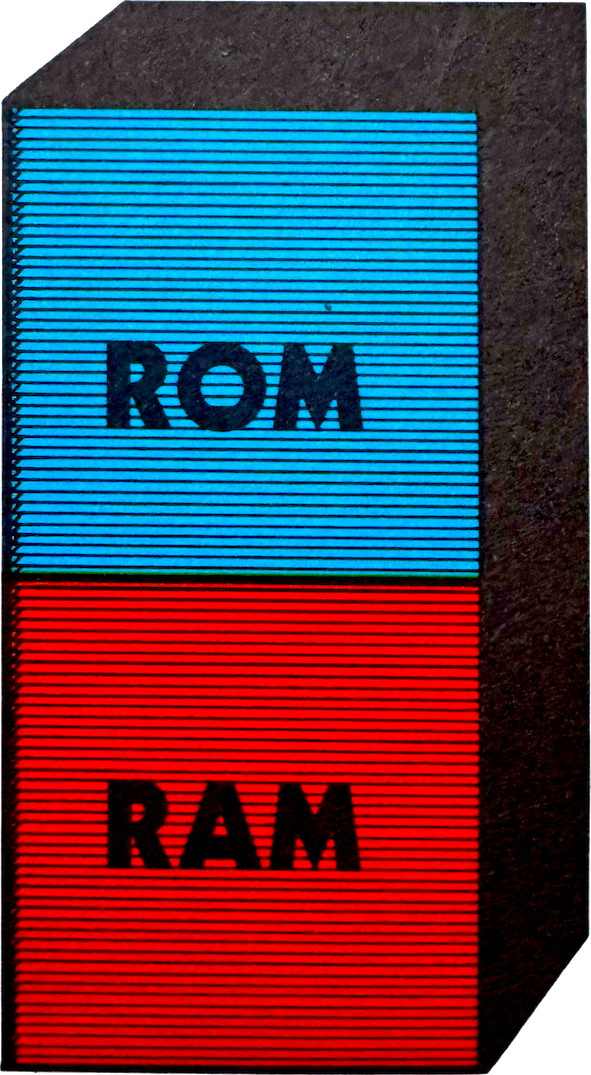 K stands for kilobyte.
In computers, this is 1024 bytes.
We can use a map!
It's in the Spectrum BASIC programming manual if you know how to use it.
A computer memory map is unusual. You can think of it as all the memory locations stacked one above the other like an enormous stack of single pigeon holes.
To find our way about the memory we use this special map.
The ZX Spectrum can directly address locations from 0 up to 65535 (FFFFh). These can't all be drawn individually on a page so in the map we just give the addresses which interest us like the top, the bottom and those that divide sections of memory.
You can now see the ROM area, the RAM area and the position of those locations we have already looked at such as 15000 and 28000.
| 16K ROM | ←0 |
| Spectrum 16K ("Lower RAM") |
←16384 |
| 48K RAM | ←32768 |
| ←65535 | |
| ←5440 | |
| ↙15000 | |
| ↙28000 |
EPROM
There is another type of memory known as EPROM. It is 'Erasable Programmable Read Only Memory'. In many ways it's like the ROM we have described earlier in that we can store information, such as a program, in it and plug it into the computer. Even if the computer is switched off the contents of the EPROM will remain the same.
If the program which is stored is faulty, it can be rubbed out or erased using ultra violet light. The EPROM can then be reprogrammed with the correct information.
ROMs are cheaper than EPROMs when they are made in large quantities, but if there is a mistake in the ROM then it cannot be corrected and usually has to be thrown away.
ZX Interface 2 by CCWoodcock CC BY 2.0
Unlike some microcomputers, the ZX Spectrum does not have any internal sockets for additional ROMs or EPROMs. ROM- and EPROM-based cartridges can be used with the optional Sinclair ZX Interface 2 accessory.
EPROM
BUSES
Let's look at how the computer finds the memory location which it wants to read or, if it is in RAM, to read or write to.
In practice the microprocessor, the 'heart' of a microcomputer, is connected to all the memory by three sets of wires. Each set of wires is known as a BUS.

The microprocessor uses the ADDRESS bus to identify which memory location it wishes to read or write to.
The DATA bus is used to transmit the data between the memory location and the microprocessor.
The CONTROL bus is used by the microprocessor to ensure that the data is read or written to a location at the correct time.
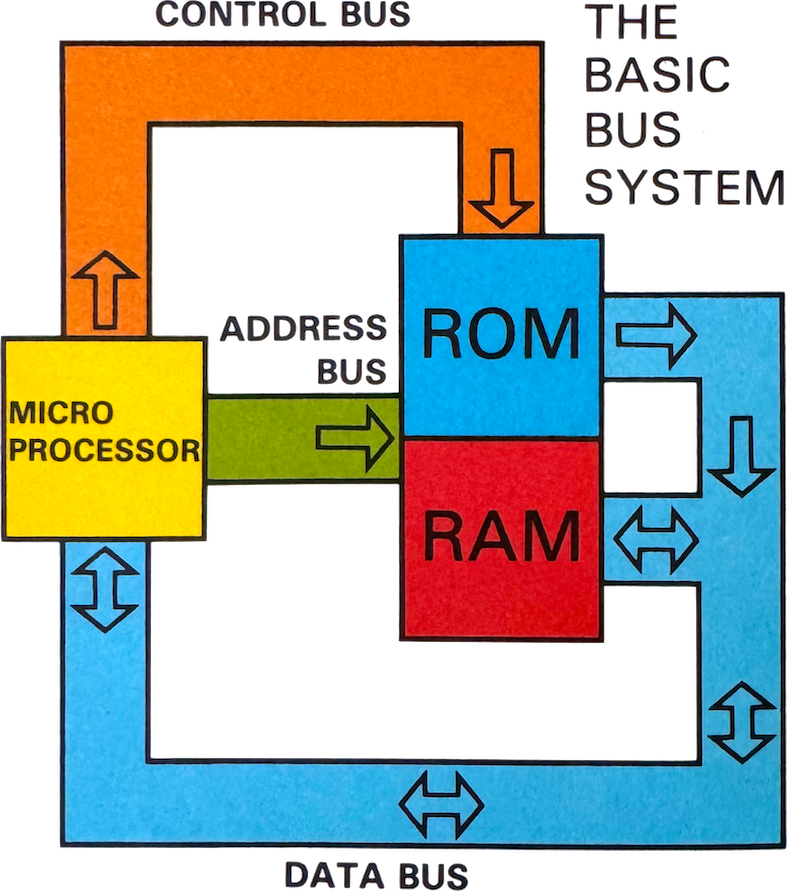
Let's see how the microprocessor uses the sets of wires to read a memory location.
In the drawing below, the microprocessor has set the number 1000 (decimal 8) on the ADDRESS bus because it wants to read what is in location 8.
When the CONTROL bus is set to read, the DATA bus takes on the value in location 8, ie 0110 (6) which is read by the microprocessor.
What value will appear on the data bus when the address bus is set to 9?
Yes, 1010 (10).
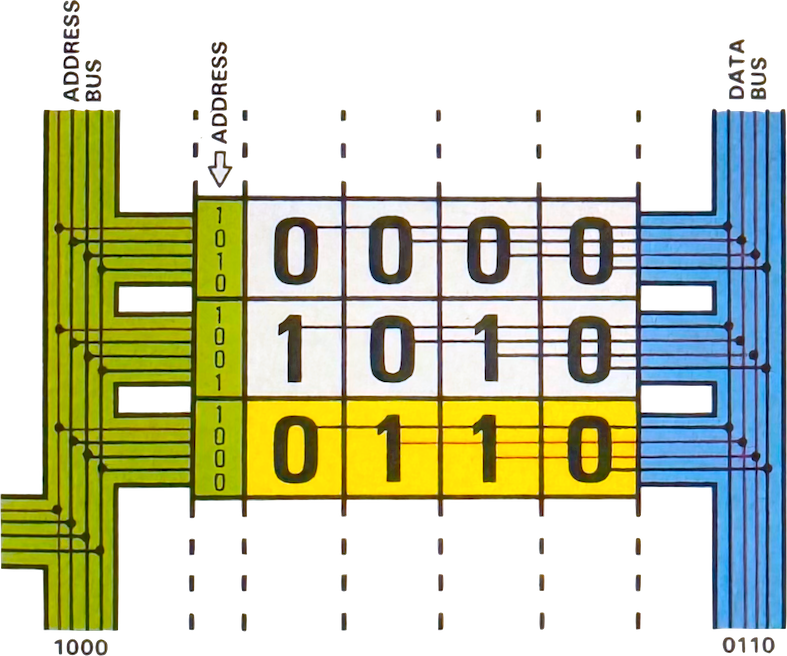
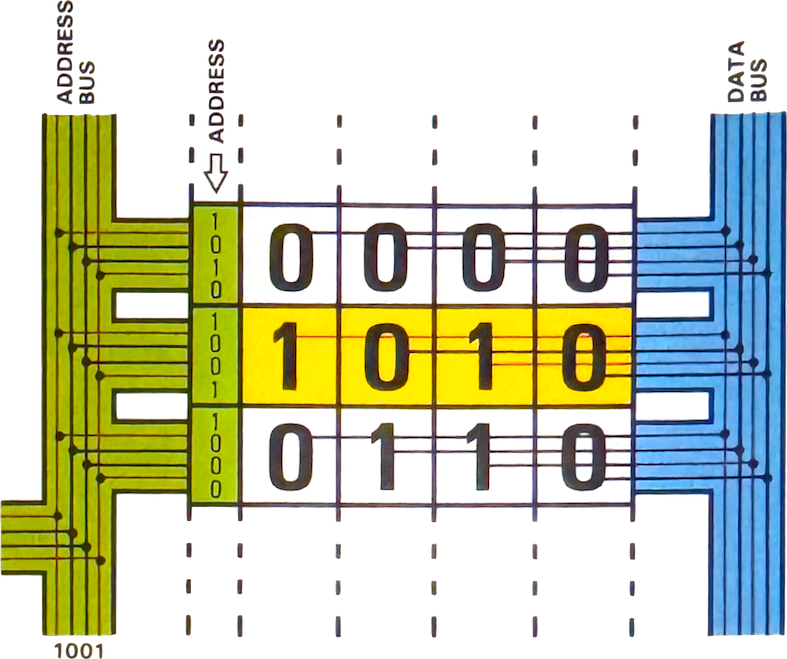
In practice the microprocessor puts a pattern of electrical voltages on the wires of the ADDRESS bus. The patterns of voltages are the same as the 0s and 1s of the address of the location it is looking for. 0 is a low voltage and 1 is a high voltage.
When the appropriate voltage signal is sent on the CONTROL bus, the voltage pattern matching the 0s and 1s of the binary number stored in the location appears on the wires of the DATA bus.
It then uses a single wire to say 'read this location.' An electronic switch connects the memory location to the second BUS, the DATA bus.
A voltage pattern matching the 0s and 1s of the binary number stored in the location appears on the wires of the data bus. This pattern of voltages is recognised by the microprocessor and it now knows the contents of that location. It has 'read' the value.
In this example, we only used a few memory locations and buses with only four wires.
In a real 8 bit computer like the ZX Spectrum, the ADDRESS bus (which has the address of the memory location required) is made up of 16 wires. The second bus, (the DATA bus which can be used to carry information to or from the microprocessor) has 8 wires.
The actual voltages used on the buses are about nought volts for 0 and four volts for 1.
The screen
Making Characters
In this section of the book we are going to look at how letters and shapes, ie characters, are formed on the screen. The smallest character we usually form is a full stop like this one (.) It uses four dots.
A full stop
Letter 'X'
Each letter, eg A, H, or X, is formed in a square on the screen known as a character block. A character is made up of 8 rows of 8 small squares, each the size of the full stop dots. Each small square, called a pixel, can be ON of OFF.
In the diagram opposite there is a pattern formed in the 8 by 8 squares. Can you see that choosing which little squares are lit up, we can make a shape?
We will now look at how this light green shape opposite is put into the computer.
The shapes for letters and numbers which are on the keyboard are stored in the computer's permanent memory, in ROM, but there are some spaces in RAM where you can store shapes. They are stored under the ASCII code numbers 144 to 164 (or 162 for Spectrum 128K).
We can make a shape, give it an ASCII number, store it and then print it on the screen when and where we want to.
If we want to store the square shape in ASCII number 151, we use:
POKE USR "H"+0,255
POKE USR "H"+1,129
POKE USR "H"+2,129
POKE USR "H"+3,129
POKE USR "H"+4,129
POKE USR "H"+5,129
POKE USR "H"+6,129
POKE USR "H"+7,255
Don't type this in
yet. Read on!
The following helps to explain all the numbers. Each command is in the form:
| POKE | USR "?"+n, | value |
| Part 1 | Part 2 | Part 3 |
Part 1 POKE tells the computer we wish to store a value in memory.
Part 2 The USR function to gets the location of the User Defined Graphic we wish to replace, and we add the row number. We can use any UDG character between A and U (ASCII codes 144 to 164). This one is USR "H" at 151.
ZX Spectrum User Defined Graphics
| UDG | CHR$ | UDG | CHR$ | UDG | CHR$ |
|---|---|---|---|---|---|
| A | 144 | H | 151 | O | 158 |
| B | 145 | I | 152 | P | 159 |
| C | 146 | J | 153 | Q | 160 |
| D | 147 | K | 154 | R | 161 |
| E | 148 | L | 155 | S | 162 |
| F | 149 | M | 156 | T | 163 |
| G | 150 | N | 157 | U | 164 |
Note: T (163) and U (164) are reserved on the ZX Spectrum 128K.
Part 3 This part describes a single row. There are 8 rows for each character.
Let's label each row 0,1,2,3,4,5,6,7.
| 0 | |||||||||
| 1 | |||||||||
| 2 | |||||||||
| 3 | |||||||||
| 4 | |||||||||
| 5 | |||||||||
| 6 | |||||||||
| 7 |
How do we find the value for row 0, the top row?
The diagram below is of row 0. Where a square is ON put a 1 and where OFF a 0. In this row they are all ON:
| 128 | 64 | 32 | 16 | 8 | 4 | 2 | 1 | total | |
| 0 | |||||||||
| 1 | 1 | 1 | 1 | 1 | 1 | 1 | 1 | ? |
Now this is an 8 bit binary number and we know that 1111 1111 is equal to 128+64+32+16+8+4+2+41 which equals decimal 255. So the value for
row 0 is 255 and we can put this into part 3 of our POKE command.
POKE USR "H"+0,255
The values for the other rows can be found in the same way:
- Look at the row in the character block.
- Put in the ones and noughts.
- Write this as an 8 bit binary number.
- Calculate the equivalent decimal value.
- Put the value in the right place in the POKE command.
Try the next row:
| 128 | 64 | 32 | 16 | 8 | 4 | 2 | 1 | total | |
| 1 | |||||||||
| 1 | 0 | 0 | 0 | 0 | 0 | 0 | 1 | ? |
The decimal equivalent of this number is:
128+0+0+0+0+0+0+1
so row 1 = 129.
Our POKE command for row 1 looks like this:
POKE USR "H"+1,129
Using 1 for ON and 0 for OFF makes the whole character look like this:
| 128 | 64 | 32 | 16 | 8 | 4 | 2 | 1 | ||
| 0 | |||||||||
| 1 | |||||||||
| 2 | |||||||||
| 3 | |||||||||
| 4 | |||||||||
| 5 | |||||||||
| 6 | |||||||||
| 7 |
We can print this square using Graphics Mode or by using CHR$. When we want to print the shape or character we can use the method on page 11. We will use the PRINT CHR$ ASCII code method.
Type in:
POKE USR "H"+0,255 Enter POKE USR "H"+1,129 Enter POKE USR "H"+2,129 Enter POKE USR "H"+3,129 Enter POKE USR "H"+4,129 Enter POKE USR "H"+5,129 Enter POKE USR "H"+6,129 Enter POKE USR "H"+7,255 Enter
| total | row | ||||||||
| 128 | 64 | 32 | 16 | 8 | 4 | 2 | 1 | 255 | 0 |
| 128 | 0 | 0 | 0 | 0 | 0 | 0 | 1 | 129 | 1 |
| 128 | 0 | 0 | 0 | 0 | 0 | 0 | 1 | 129 | 2 |
| 128 | 0 | 0 | 0 | 0 | 0 | 0 | 1 | 129 | 3 |
| 128 | 0 | 0 | 0 | 0 | 0 | 0 | 1 | 129 | 4 |
| 128 | 0 | 0 | 0 | 0 | 0 | 0 | 1 | 129 | 5 |
| 128 | 0 | 0 | 0 | 0 | 0 | 0 | 1 | 129 | 6 |
| 128 | 64 | 32 | 16 | 8 | 4 | 2 | 1 | 255 | 7 |
The numbers
above show how each
row value is
calculated
You can find out more about User Defined Graphics in Chapter 14 of the BASIC programming manual.
To print the character to the screen, type in:
PRINT CHR$ 151 Enter
Did it work?
Do you want the square near the middle of the screen?
Then type in:
PRINT AT 10,16;CHR$ 151 Enter
Let's try another shape such as an arrow. See the picture below.
| 128 | 64 | 32 | 16 | 8 | 4 | 2 | 1 | ||
| 0 | |||||||||
| 1 | |||||||||
| 2 | |||||||||
| 3 | |||||||||
| 4 | |||||||||
| 5 | |||||||||
| 6 | |||||||||
| 7 |
If we replace those squares ON with a 1 and those OFF with 0 we get this.
| 128 | 64 | 32 | 16 | 8 | 4 | 2 | 1 | total | |
| 0 | 7 | ||||||||
| 1 | 3 | ||||||||
| 2 | 5 | ||||||||
| 3 | 8 | ||||||||
| 4 | 16 | ||||||||
| 5 | 32 | ||||||||
| 6 | 64 | ||||||||
| 7 | 128 |
We can also use a short program to put the values into the correct locations.
  10 FOR I=0 TO 7:READ D:POKE USR "A"+I,D:NEXT I
  20 DATA 7,3,5,8,16,32,64,128
To update or re-define UDG 'A' we must run the program.
RUN Enter
UDG 'A' is at ASCII code 144. To print this new character, the arrow, near the centre of the screen type in:
PRINT AT 10,16;CHR$ 144 Enter
We will now create CHR$ 145 with a dot in each corner of the character. We are going to use this shape later. It is easier if you draw it out on paper.
| 128 | 64 | 32 | 16 | 8 | 4 | 2 | 1 | total | |
| 0 | 129 | ||||||||
| 1 | 0 | ||||||||
| 2 | 0 | ||||||||
| 3 | 0 | ||||||||
| 4 | 0 | ||||||||
| 5 | 0 | ||||||||
| 6 | 0 | ||||||||
| 7 | 129 |
Type in:
  10 FOR I=0 TO 7:READ D:POKE USR "B"+I,D:NEXT I
  20 DATA 129,0,0,0,0,0,0,129
and run the program.
RUN Enter
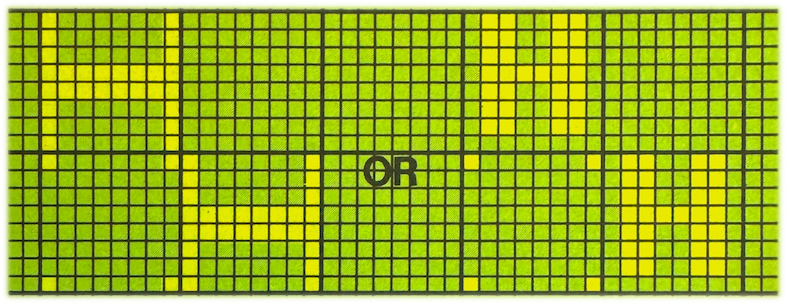
Let's try to form the letter H. Let's look at the computer's H more carefully on the screen. Type in our latest character with 4 dots and put 2 Hs beside it to work out the size of the H.
Type in:
PRINT AT 7,8;"H";AT 8,8;CHR$ 145;"H"
Enter
You will need to have typed in and run the program before the rest of the inputs if it is to work. Does your picture look like this?
Good! Now we will draw out an H on our 8 by 8 character. Calculate your values for rows 0 to 7.
| 128 | 64 | 32 | 16 | 8 | 4 | 2 | 1 | total | |
| 0 | 66 | ||||||||
| 1 | ? | ||||||||
| 2 | ? | ||||||||
| 3 | ? | ||||||||
| 4 | ? | ||||||||
| 5 | ? | ||||||||
| 6 | ? | ||||||||
| 7 | 0 |
You work out the code values.
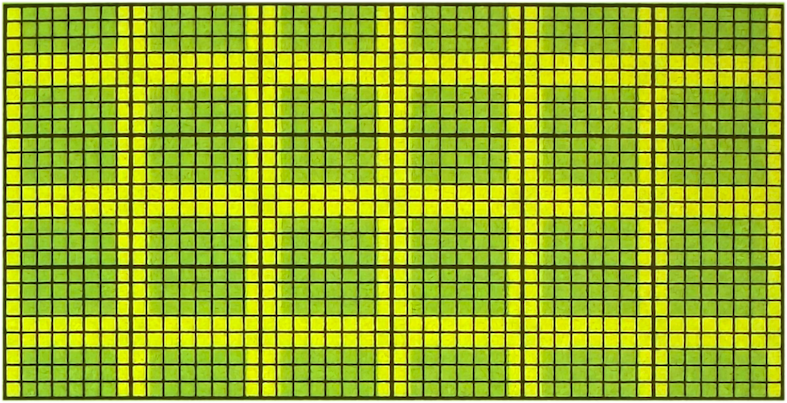
Have you noticed that the H has been drawn so that there is a spare line down each side and across the bottom row?
If the left hand and bottom spaces were not left clear, all the letters and figures would join together in a single mass without any gaps between the rows of characters, like this:
Now we can type our program
  10 FOR I=0 TO 7:READ D:POKE USR "C"+I,D:NEXT I
  20 DATA 66,?,?,?,?,?,?,?
You are now putting your numbers in place of the question marks aren't you?
To re-define the character we must run the program.
RUN Enter
Type in:
PRINT AT 7,8;"H";AT 8,8;CHR$ 146;"H"
Enter
 Has your H thin legs
like this?
How can we thicken the legs? We must put in more dots. Let's change it.
| 128 | 64 | 32 | 16 | 8 | 4 | 2 | 1 | total | |
| 0 | 102 | ||||||||
| 1 | ? | ||||||||
| 2 | ? | ||||||||
| 3 | ? | ||||||||
| 4 | ? | ||||||||
| 5 | ? | ||||||||
| 6 | ? | ||||||||
| 7 | 0 |
Now you can work out
the code values
Type in the new POKE USR "D" codes and print it out using CHR$ 147.
You could try other simple shapes such as triangles and rectangles.
 Would you like to make a litle figure who can wave or move across the screen?
First you need to draw out the figure you want on the 8 by 8 grid.
| 128 | 64 | 32 | 16 | 8 | 4 | 2 | 1 | total | |
| 0 | 60 | ||||||||
| 1 | ? | ||||||||
| 2 | ? | ||||||||
| 3 | ? | ||||||||
| 4 | ? | ||||||||
| 5 | ? | ||||||||
| 6 | ? | ||||||||
| 7 | ? |
You can store this figure with his arm up in code number 148 and his arm down in 149. Let's write a little program to make him wave ten times.
Type in:
15 REM Person with arm up
20 FOR I=0 TO 7: READ D: POKE USR "E"+I,D: NEXT I
21 DATA 60,61,25,126,152,60,36,102
25 REM Person with arm down
30 FOR I=0 TO 7: READ D: POKE USR "F"+I,D: NEXT I
31 DATA 60,60,24,126,153,60,36,102
40  FOR w=1 TO 10
45 REM Print person with arm up
50 PRINT AT 10,16;CHR$ 148
60 FOR d=1 TO 250: NEXT d
65 REM Print person with arm down
70 PRINT AT 10,16;CHR$ 149
80 FOR d=1 TO 350: NEXT d
90  NEXT w
Put in the program and type
RUN Enter
Can you make him move across the screen?

You need to change the second value in the AT statement. Don't forget to rub him out as he moves using " " ie typing a space in the right place.
This is a program which will do this.
 10 REM Moving waving person.
 30 FOR I=0 TO 7:READ D:POKE USR "E"+I,D:NEXT I
 31 DATA 60,61,25,127,24,126,66,66
 40 FOR I=0 TO 7:READ D:POKE USR "F"+I,D:NEXT I
 41 DATA 60,60,24,127,25,127,66,66
 50  FOR X=1 TO 30 STEP 2
 55 REM Print person with arm up.
 60 PRINT AT 10,X;CHR$ 148
 70 FOR d=1 TO 150: NEXT d
 75 REM Print blank over person.
 80 PRINT AT 10,X;" "
 85 REM Print person with arm down.
 90 PRINT AT 10,X+1;CHR$ 149
100 FOR d=1 TO 150: NEXT d
105 REM Print blank over person.
110 PRINT AT 10,X+1;" "
120  NEXT X
AND, OR and EOR
We are familiar with BITS and BYTES and we are now going to look at another topic which requires an understanding of bits known by computer people as bit by bit or bitwise operations.
This topic may be useful to you when you start designing programs using colour graphics with the ATTR statement or when you use your microcomputer to control things.
AND
Let's consider two bulbs A and B. A is a red bulb and B is a green bulb. As on page2 if a bulb is ON we will say it is in logic state 1 and if OFF, logic state 0.
The drawing below shows all the possible combinations of ONs and OFFs for the two bulbs.
We can now look at each combination and see in which column the red lamp and the green lamp are ON.
| A | 1 | 0 | 1 | 0 |
| B | 1 | 1 | 0 | 0 |
| A AND B | 1 | 0 | 0 | 0 |
If they are both on we put a 1 in the AND row, if not then we put a 0 as shown above.
Now consider two numbers in binary, such as 2 and 3.
| decimal | binary | |
|---|---|---|
| 2 | 10 | |
| 3 | 11 | |
| 2 AND 3 | 2 | 10 |
If we AND the right bit of each number we get 0 AND 1 which gives 0. If we AND the left bits we get 1 AND 1 which gives 1 as shown above.
Now binary 10 is decimal 2 so if we AND 2 and 3 we get 2.
Use this program to check the result.
 10 REM AND, OR, EOR (using Z80 machine code)
 20 LET H$="DD2A0B5CDD7E04DD460CA006004FC9"
 30 DEF FN A(a,b)=USR USR "A"
 40 LET A=USR "A": GO SUB 180
 50 LET H$(21)="B"
 60 DEF FN O(a,b)=USR USR "O"
 70 LET A=USR "O": GO SUB 180
 80 LET H$(21)="A": LET H$(22)="8"
 90 DEF FN E(a,b)=USR USR "E"
100 LET A=USR "E": GO SUB 180
110 INPUT "A (-1 to END): ";A: IF A<0 THEN STOP
120 INPUT "B: ";B
130 PRINT A;" AND ";B;" = ";FN A(A,B)
140 PRINT A;" OR  ";B;" = ";FN O(A,B)
150 PRINT A;" EOR ";B;" = ";FN E(A,B)
160 PRINT : GO TO 110
170 DEF FN B(x)=x-48-7*(x>57)-32*(x>70)
180 FOR I=2 TO LEN H$ STEP 2 : LET L=CODE H$(I)
190 POKE A,FN B(CODE H$(I-1))*16+FN B(L)
200 LET A=A+1: NEXT I : RETURN
; Bitwise Operation Machine Code
; Z80 Resources: Assembler, Disassembler, Reference

init:               ; Get parameters from DEF FN X(x,y)
    ld ix,(23563)   ; See: Sinclair User 45, pp. 62-64
    ld a,(ix+4)     ; Lower byte of x into register a
    ld b,(ix+12)    ; Lower byte of y into register b
inst:               ; Replacement location
    and b           ;   AND (default)
    ld b,0          ; Put 0 in register b (high byte)
    ld c,a          ; Put result in register c (low byte)
    ret             ; return

; End of routine (15 bytes)

; Operations for replacement at location inst
AND:
    and b           ; for FN A(a,b) in UDG A+B (default)
OR:
    or b            ; for FN O(a,b) in UDG O+P
EOR:
    xor b           ; for FN E(a,b) in UDG E+F
Type in the program and run it.
RUN Enter
Try 2 and 3.
Did you get 2?
You now know why!
OR
Let's now look at the OR function. Consider the red and green bulbs on the opposite page. This time we will consider under which conditions the red OR the green bulb is ON.
Note that OR in this case is not quite the same as 'or' as used in normal English. If the red bulb is ON or the green bulb is ON we put a 1 in the OR column.
| A | 1 | 0 | 1 | 0 |
| B | 1 | 1 | 0 | 0 |
| A OR B | 1 | 1 | 1 | 0 |
So logical OR is true if either or both lights are ON.
An example of the OR condition occurs in most cars. The interior light of a car comes on if just the front offside door or just the front nearside door are open or both front doors are open.
Let us now OR two numbers bit by bit. We can use 2 and 3.
If we OR the right bit of each number we get 0 OR 1 = 1. The left bits give 1 OR 1 = 1.
| decimal | binary | |
|---|---|---|
| 2 | 10 | |
| 3 | 11 | |
| 2 OR 3 | ? | 11 |
So if we OR 2 and 3 we get 3.
You can now try 3 bit numbers. What is 5 OR 3?
We get:
| decimal | binary | |
|---|---|---|
| 5 | 101 | |
| 3 | 011 | |
| 5 OR 3 | ? | 111 |
Check your answer using the program. Do you get 5 OR 3 equals 7?
EOR
EOR stands for Exclusive OR, sometimes abbreviated XOR. The Exclusive OR (EOR) behaves in the same way as 'or' in the English language.
Consider the bulbs on page 30 again.
We put a 1 in the EOR column only when either the red bulb or the green bulb is ON.
| A | 1 | 0 | 1 | 0 |
| B | 1 | 1 | 0 | 0 |
| A EOR B | 0 | 1 | 1 | 0 |
Let us now EOR two numbers bit by bit. We can use the same two numbers as before, 2 and 3.
If we EOR the right bit of each number we get 0 EOR 1 = 1. The next left bits give 1 EOR 1 = 0.
So 2 EOR 3 equals 1.
| decimal | binary | |
|---|---|---|
| 2 | 10 | |
| 3 | 11 | |
| 2 EOR 3 | ? | 01 |
Try this on your computer.
Do you now
understand the meaning of the logic terms AND, OR and EXCLUSIVE OR?
If you don't, practise some more and check them using your computer.
You will find these terms used in digital electronics, as well as colour graphics.